How to Add Year Make Model Search to Your Shopify Store
A practical guide to adding Year / Make / Model (YMM) fitment search to Shopify — what it is, why it matters, the options, and how to set it up without paying for a data silo.
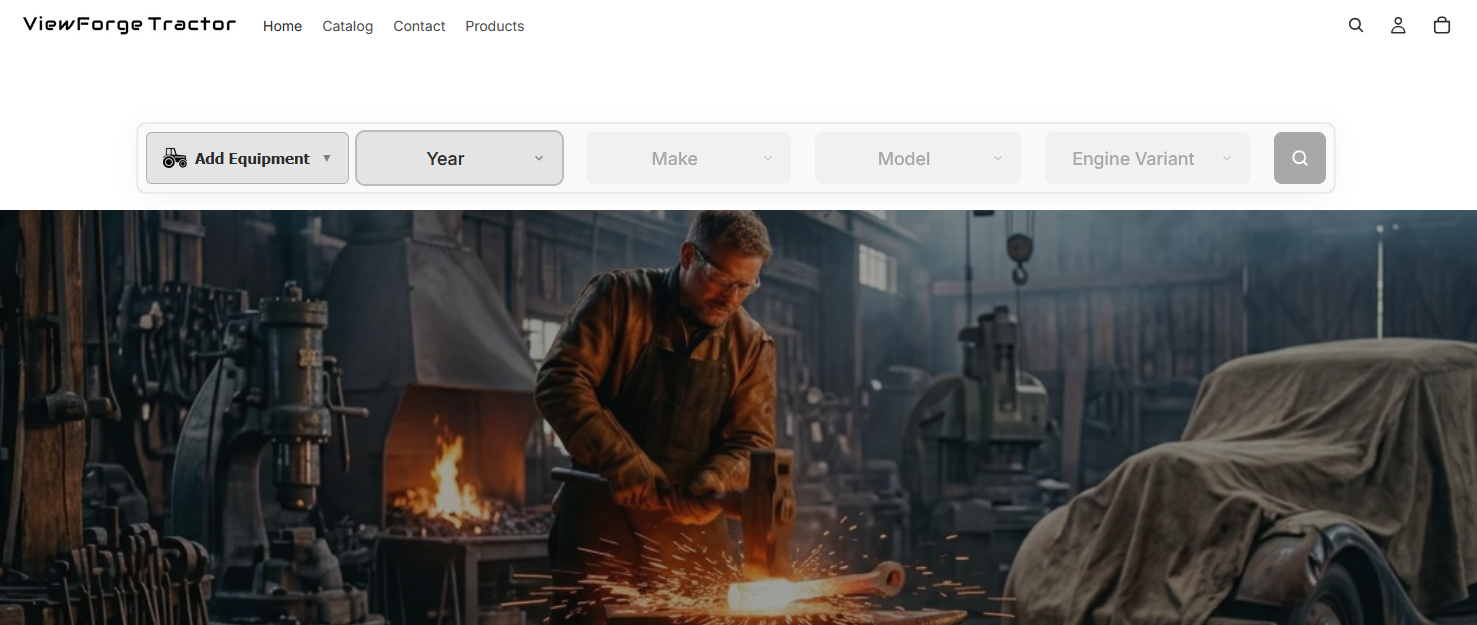
If you sell parts online — auto, motorcycle, tractor, marine, power equipment, even printers — your customers don’t care about your catalog taxonomy. They care about one question: does this fit my thing?
The way you answer that question on a Shopify store is called Year / Make / Model search (YMM for short). Three dropdowns — or four, if you need Submodel — and a button that says “Find Parts.” The customer picks “2019 Ford F-150 XLT,” and your catalog filters down to parts that actually fit.
This guide walks through what YMM search is, why it’s non-negotiable for parts merchants, the three main ways to add it to Shopify, and how to set it up without giving up control of your fitment data.
What is YMM search (and why is it a big deal)?
YMM search is a fitment filter. It narrows a catalog by vehicle (or equipment) configuration so the customer only sees parts that fit.
It matters because the alternative — a customer guessing whether a part fits — creates two expensive problems:
- Wrong-part returns. Auto parts return rates hover around 20–30% industry-wide. A big chunk of that is fitment. Every wrong-part return is a refund, a restocking cost, a shipping cost, and a customer who won’t come back.
- Pre-purchase friction. If a customer can’t confirm fit, most will bounce to a competitor who can answer the question. YMM search is not a “nice to have” for parts merchants — it’s the difference between a 2% conversion rate and an 8% conversion rate.
YMM isn’t automotive-only. The same pattern works for any catalog with compatibility rules:
- Tractor / Agriculture — Make / Model / Year / Implement
- Marine — Make / Model / Engine Year / HP
- Motorcycle — Year / Make / Model / Trim
- Power Equipment — Brand / Model / Serial Range
- Bicycle / E-bike — Brand / Year / Model / Wheel Size
- Printer / Office — Brand / Series / Model / Region
- Electronics — Brand / Device / Model / Generation
The name “Year Make Model” is just the automotive case. The pattern underneath is predicate search over a compatibility dataset, and it applies anywhere a catalog needs “does this fit?” logic.
The three ways to add YMM to Shopify
1. Roll your own with metafields + Liquid
Shopify has metafields and metaobjects. In principle, you can model fitment records as metaobjects, tag products with compatibility references, and write Liquid to render the dropdowns and filter the collection.
This is possible. It’s also a lot of work.
You’d need to build:
- A data model for configurations (Year / Make / Model as metaobject definitions)
- A data model for fitment records (product → configuration references)
- A bulk import path for CSV data (most parts merchants have spreadsheets)
- The storefront UI (dropdowns, cascading logic, URL state)
- The backing search index so filtering is fast on collections with thousands of products
- An admin interface for merchants to manage fitment without editing JSON
Budget 200–400 hours of engineering to do it well. And metafields have subtle gotchas — Liquid’s complexity analyzer can throttle pages that read metafields cold, and undefined metafield access on a target: body app embed can push a page past Shopify’s complexity ceiling and return HTTP 500. We learned this the hard way.
2. Install a YMM app from the Shopify App Store
This is what most merchants pick. There are roughly half a dozen YMM / fitment apps on the App Store, ranging from ~$19/month to ~$850/month. The main trade-offs between them are:
- Where does your fitment data live? Most apps store fitment in their own external database. If you uninstall the app, your data goes with it.
- How do you get data in? CSV import? API only? Manual entry? If you have 10,000 fitment records, manual entry isn’t a path.
- What verticals does it support? Several apps are automotive-only. If you sell tractor parts, marine, or power equipment, check before you install.
- Does it have Smart Parse? Some apps require you to build the fitment dataset from scratch. Others can parse your existing product titles and descriptions and extract fitment automatically.
- Price tier gating. “VIN lookup” or “My Garage” features are often pay-walled at the top tier. Check what’s in each tier before committing.
We built ViewForge specifically to fix three problems we saw with the existing options:
- Data ownership. ViewForge stores fitment records as Shopify-native metaobjects. Uninstall ViewForge, your fitment data stays in your store. Reinstall it, or replace it with another tool that reads metaobjects — it’s your data, not ours.
- Eight verticals, not one. ViewForge ships with presets for automotive, motorcycle, agriculture/tractor, marine, power equipment, bicycle/e-bike, printer/office, and electronics. Custom templates for anything else.
- Smart Parse. Paste your existing product titles — “Front Brake Pads for 2017-2021 Honda Civic LX/EX/Touring” — and the parser extracts the fitment records for you. Saves weeks of manual entry on legacy catalogs.
3. Hybrid — custom metaobjects + a thin app
Larger merchants sometimes model fitment themselves with metaobjects but use an app for the storefront UI and search index. This works, but you’re taking on most of the maintenance burden of option 1 without getting all the cost savings. Usually not the right call unless you have very specific data requirements.
How to set up YMM search on Shopify — step by step
Using ViewForge as the example. The high-level steps are similar for any YMM app.
Step 1 — Pick your template
Choose the vertical (automotive, motorcycle, marine, etc.) or define a custom one. This sets the dimensions of your fitment data — typically 3 to 4 levels deep. For automotive that’s Year / Make / Model / Submodel. For marine that might be Make / Model / Engine Year / HP.
The dimensions become the dropdowns on your storefront.
Step 2 — Import or parse your fitment data
Three options:
- CSV import. If you have a spreadsheet of fitment records (most parts merchants do — usually exported from a supplier’s ACES dataset or an internal inventory system), upload it. Map the columns. Done.
- Smart Parse. Point Smart Parse at your existing product descriptions and let it extract fitment. Review the extracted records before committing them to the catalog. Best for catalogs that already have fitment info buried in product titles.
- Manual entry. For small catalogs (under ~100 SKUs), hand-enter fitment per product.
Step 3 — Place the YMM widget on your storefront
This is a theme block. In your Shopify theme editor, add the YMM search block to your homepage, header, or collection pages. Typical placements:
- Homepage hero — big, centered, can’t miss it
- Collection page header — so customers can narrow a category
- Product page — “Check fit” widget that validates the product against the customer’s vehicle
Touch targets of 36px or larger (Shopify’s web component standard), mobile-first, and the dropdowns should cascade — picking a Year filters the Makes to only makes that exist for that year.
Step 4 — Test with real customer data
Before you go live, test three flows:
- Customer with a common vehicle. 2019 Honda Civic. Should return fast, return many parts.
- Customer with a rare vehicle. 1983 Saab 900 Turbo. Should either return the relevant parts or tell the customer “no parts found for this configuration” — not show unrelated parts.
- Customer whose vehicle isn’t in your catalog yet. Should not 500, should not show the whole catalog. Should say “we don’t carry parts for this vehicle” and offer a contact path.
Most YMM problems surface in the third case. If the app silently falls back to showing every product when no fit is found, you have a worse experience than no YMM at all.
Step 5 — Monitor and iterate
Add analytics on the YMM widget:
- Search → click-through rate. If customers search and don’t click, your result page is the problem.
- Search → “no results” rate. If lots of searches return nothing, your fitment dataset has coverage gaps.
- Most-searched configurations. Tells you which parts to stock more of.
The data ownership question — why it matters
Most YMM apps store fitment data in an external database. If you uninstall, your data is gone. If they shut down, your data is gone. If their pricing changes and you want to switch, you’re rebuilding your fitment dataset from scratch.
Shopify’s metaobject system is an alternative. Metaobjects are native Shopify records — they live in your store, in your admin, in your GraphQL API. An app that stores fitment in metaobjects gives you a key property: your data outlives the app.
This is why we built ViewForge on metaobjects rather than an external database. It costs us more to operate (Shopify API calls aren’t free), but it means uninstalling ViewForge doesn’t destroy a merchant’s catalog. That’s the right trade-off for a tool that’s going to live on a store for years.
What to watch out for
A few common pitfalls we’ve seen:
- App data silos. If the app stores fitment externally, export options and pricing on those exports are worth checking before you commit.
- Page speed on large catalogs. YMM search with 50,000 products needs a real search index. Ask the vendor what happens at scale.
- Mobile UX. Most parts searches happen on phones. Test the dropdowns on mobile before committing to a block layout.
- Search terms and SEO. Your YMM app shouldn’t block Google from indexing filtered URLs — “2019 Honda Civic brake pads” is a real search query and you want to rank for it.
- Pricing tiers that hide essentials. Some apps gate CSV import or VIN lookup behind a top tier. Check what’s actually in each tier before installing.
TL;DR
Adding Year / Make / Model search to Shopify comes down to three choices:
- Build it yourself — possible but expensive. Budget 200–400 hours and a lot of metafield complexity gotchas.
- Install a YMM app — fastest path to live. Check where the data lives, what verticals are supported, and whether CSV import or Smart Parse are included.
- Hybrid — usually not worth the complexity.
If you want a fitment app that stores your data in Shopify metaobjects, supports eight verticals beyond automotive, and can parse your existing product descriptions to bootstrap the fitment dataset, check out ViewForge.
ViewForge is a Shopify YMM / fitment app built by Normal View. Metaobject-native, eight verticals, Smart Parse included. Free plan covers up to 50 products.